---
title: Reset the In-Wall Outlet to Factory Settings
description: Before performing a Factory Reset, remove the outlet from the ConnectSense app. The Reset Sensor will act differently, depending on the pattern of the...
---
[Skip to content](https://support.gridconnect.com/connectsense/reset-the-in-wall-outlet-to-factory-settings#main-content)
[Submit a ticket](https://support.gridconnect.com/connectsense/kb-tickets/new?hsLang=en)

Open main navigation
Close main navigation
- [Submit a ticket](https://support.gridconnect.com/connectsense/kb-tickets/new)
How can we help you?
- There are no suggestions because the search field is empty.
1. [ConnectSense](https://support.gridconnect.com/connectsense?hsLang=en)
2. [How To Guides](https://support.gridconnect.com/connectsense/how-to-guides?hsLang=en)
# Reset the In-Wall Outlet to Factory Settings
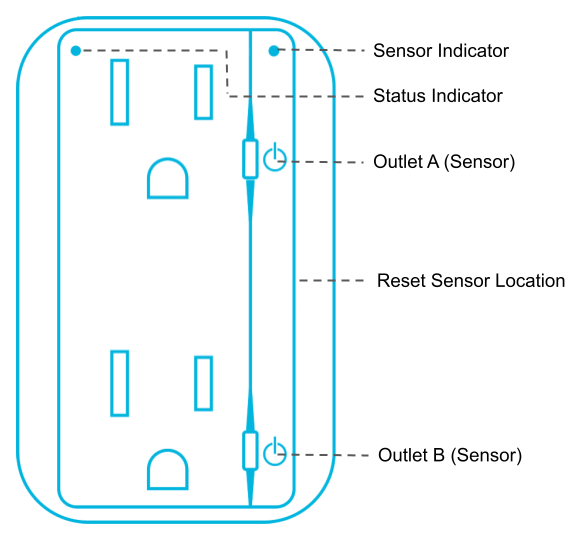
Before performing a Factory Reset, remove the outlet from the ConnectSense app.
The Reset Sensor will act differently, depending on the pattern of the touches it receives:
- **Reboot** - Three taps + hold for 5 seconds \[on 3rd tap\] (Setup indicator turns solid green)
- **WiFi Reset** - Three taps + hold for 10 seconds \[on 3rd tap\] (Setup indicator turns solid yellow)
- **Factory Reset** - Three taps + hold for 15 seconds \[on 3rd tap\] (Setup indicator turns solid red)
Also, as an alternative, you could insert a plug into Outlet B and unplug it continuously until you notice the Status Indicator turns RED. This will perform a Factory Reset.
**Note:** *The indicator LED must be blinking yellow in order to pair the outlet with your mobile device.*
Status Indicator Colors:
**Blinking Red – Connection failed, try reset**
**Blinking Yellow – Waiting to connect to a Wi-Fi network**
**Blinking Green – Connected**
- [How To Guides](https://support.gridconnect.com/connectsense/how-to-guides?hsLang=en)
- [Troubleshooting](https://support.gridconnect.com/connectsense/troubleshooting?hsLang=en)
- [FAQs](https://support.gridconnect.com/connectsense/faqs?hsLang=en)
[](https://www.gridconnect.com/)
Copyright © 2026, ConnectSense